
In Part 1, I created the ChatGPT Ads account, set up billing, built the campaign and ad, completed advertiser verification, and got the ad serving. In this part, I will walk through the ChatGPT Ads manager, explaining what each section does, the settings that matter, and what my first small campaign actually delivered.
The Ads manager at a glance
The left menu has six sections. Here is what each one is for.
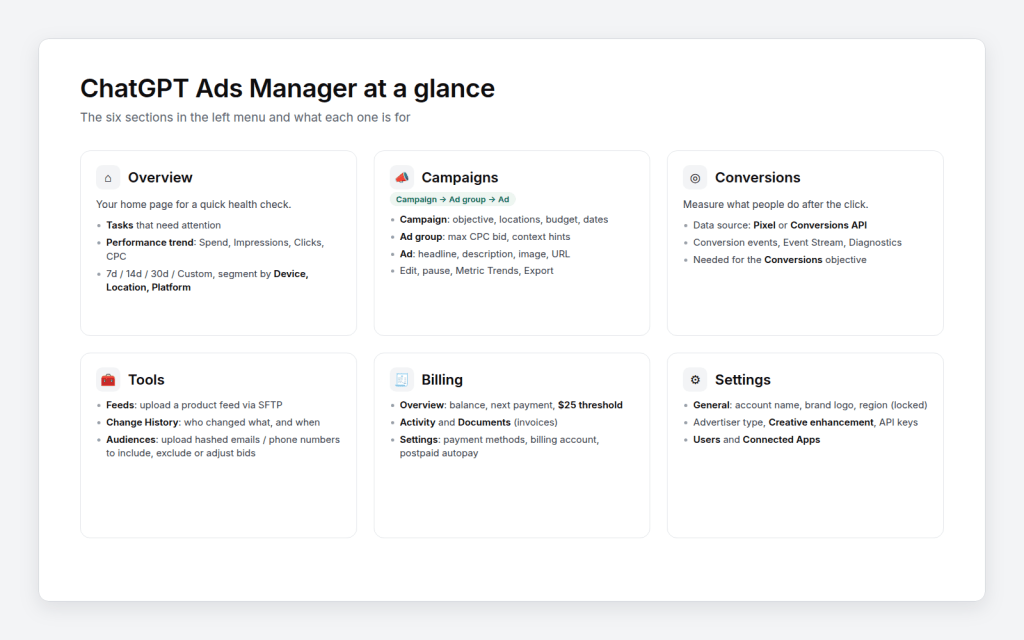
- Overview – A quick health check of the account.
- Campaigns – Where you create, edit and monitor campaigns, ad groups and ads.
- Conversions – Where you connect your website so Ads Manager can measure sign-ups, purchases and leads.
- Tools – Product feeds, change history and custom audiences.
- Billing – Balance, payments, invoices and payment methods.
- Settings – Account details, verification, creative settings, API keys and users.
Overview
The overview page is the home page of Ads manager.
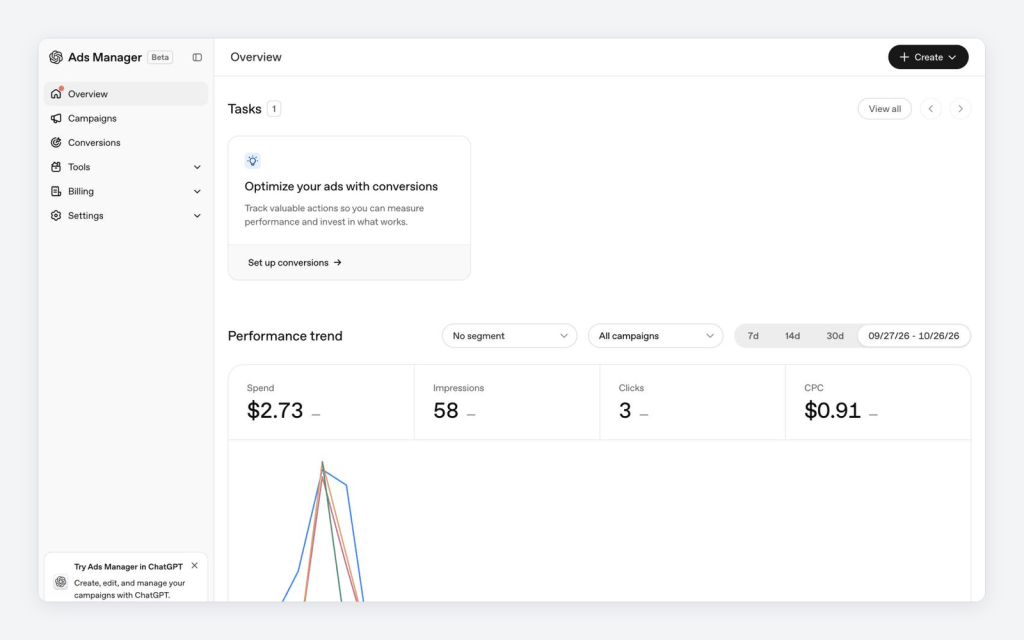
- Tasks – Suggestions that need your attention. For me, it was ‘Optimize your ads with conversions’.
- Performance trend – Spend, Impressions, Clicks and CPC with a trend chart.
- Date range – 7 days, 14 days, 30 days or a custom range.
- Segment – Break the numbers down by Device, Location or Platform.
- Filter – All campaigns or a specific campaign.
For September 27 to October 26, my account showed $2.73 spend, 58 impressions, 3 clicks and a $0.91 CPC (the campaigns table and invoice show $2.72 – a rounding difference). You can see the whole campaign ran between September 27 and October 1.
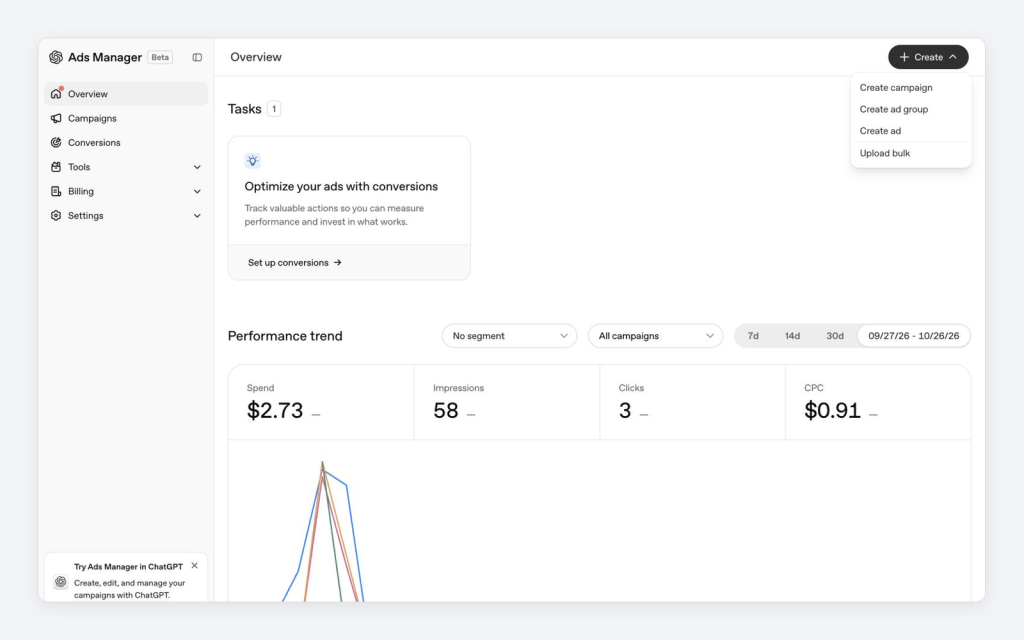
The Create button at the top is available from every page.
Campaigns – Campaign, Ad group and Ad
The campaigns page has three tabs that follow the structure of ChatGPT Ads.
- Campaign – Objective, locations, budget and dates.
- Ad group – Bid and context hints (where the ad should show up).
- Ad – Headline, description, image and destination URL.
Clicking a campaign name drills down to its ad groups. The tabs show a ‘1 selected’ chip so you know what you are filtered on.
The campaigns table
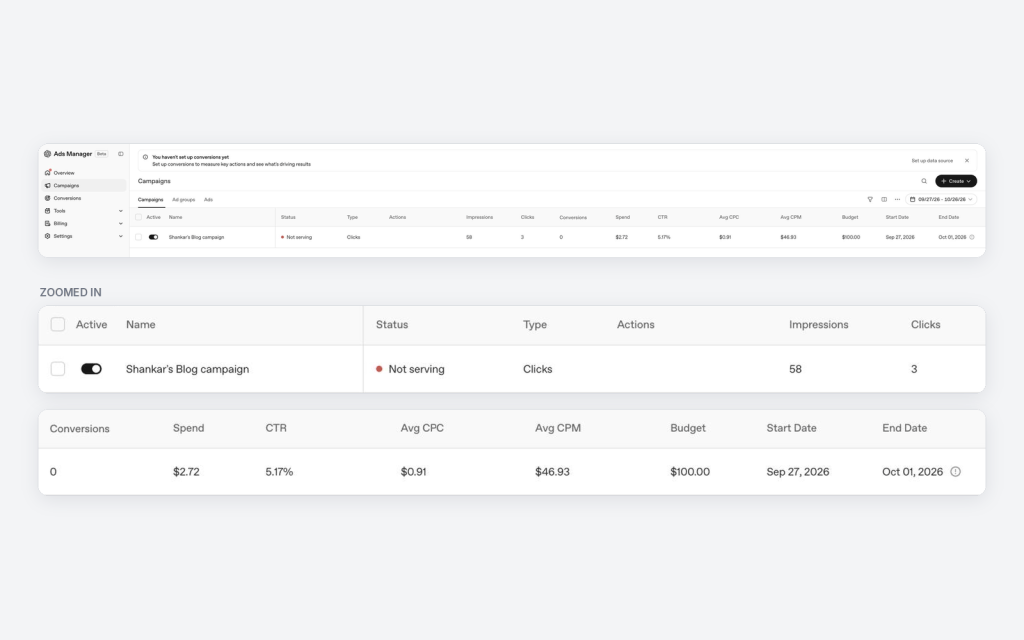
The columns tell you everything about the campaign in one row.
- Active – The on/off switch to pause or resume the campaign.
- Status – Serving or Not serving. Hover over it to see the reason.
- Type – The objective. Mine is Clicks.
- Actions – Recommendations from Ads manager.
- Impressions, Clicks, Conversions, Spend – The core results.
- CTR – Click-through rate (clicks ÷ impressions).
- Avg CPC – Average cost per click.
- Avg CPM – Average cost per 1,000 impressions.
- Budget, Start Date, End Date – The campaign setup.
A few useful things around the table.
- Date range picker – The default view only shows the last 14 days. I had to change it to start on September 27 to see my campaign’s numbers.
- Filter, Edit columns and Table actions – The three icons next to the date picker.
- Timezone – Reports use your account time zone (Mountain Time for me), while billing uses UTC.
- Preliminary data – Today’s numbers are marked as preliminary and can still change.
Why my campaign stopped serving
When I came back to Ads manager, the campaign showed Not serving. Hovering over the status explained why? The Campaign has ended.
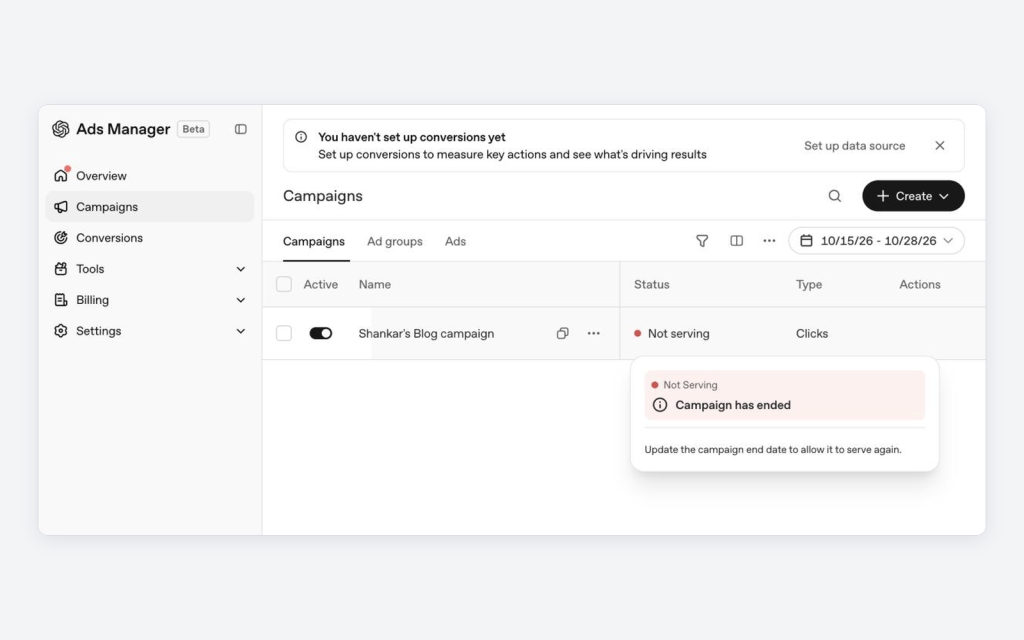
- The campaign had an end date of October 1, 2026.
- It ran for about five days and spent only $2.72 of the $100 campaign total.
- The fix is simple, update the end date. The End Date column also offers an Extend 30 days shortcut.
Lesson learned – check the end date before you launch. A campaign total budget is spread across the dates you set.
Editing a campaign
Select a campaign and click Edit to see all the campaign-level settings.
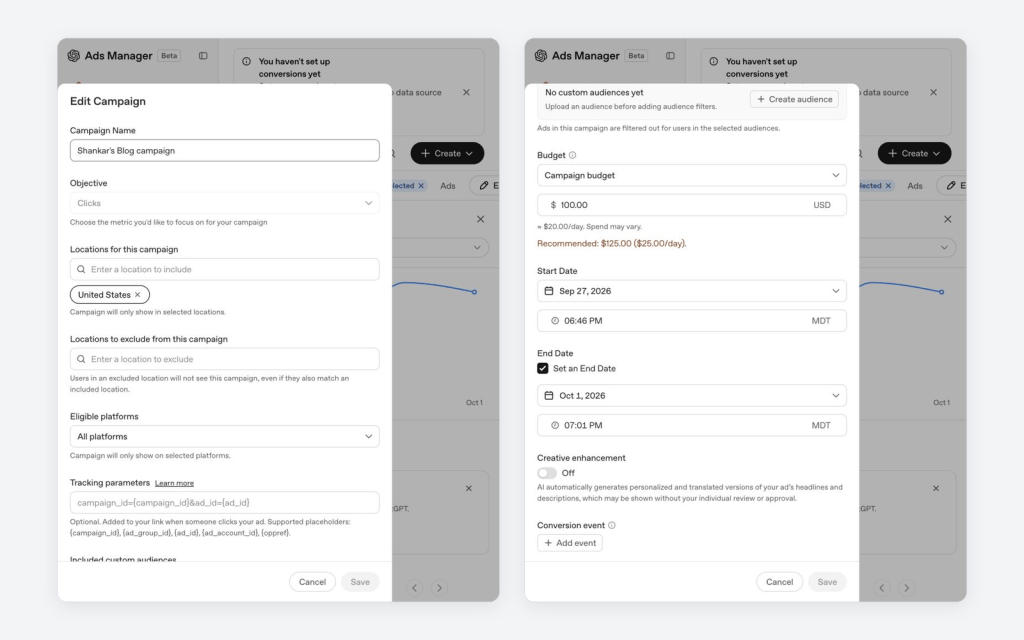
- Campaign name – Name of campaign. Editable.
- Objective – Greyed out. The objective can’t be changed after the campaign is created.
- Locations – Include locations (United States for me) and exclude locations.
- Eligible platforms – All platforms, or only specific ones.
- Tracking parameters – Added to your link when someone clicks your ad. Supported placeholders –
{campaign_id},{ad_group_id},{ad_id},{ad_account_id}and{oppref}. This is the place to add UTM parameters for your own analytics. - Included and excluded custom audiences – Show the ad only to, or hide it from, people in an uploaded audience.
- Budget – My $100 campaign budget showed ≈ $20.00/day, with a recommendation of $125.00 ($25.00/day) for the same dates.
- Start Date and End Date – Including the time and time zone.
- Creative enhancement – Off for my campaign. When on, AI generates personalized and translated versions of the headline and description, which may be shown without your individual review.
- Conversion event – Link a conversion event when you have conversions set up.
Ad groups
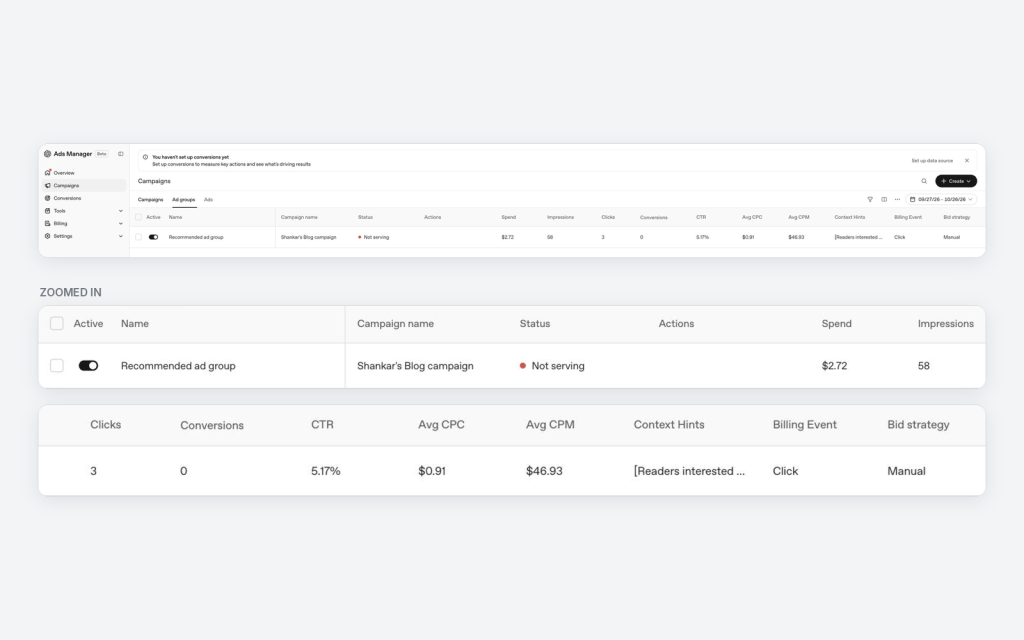
Ads Manager created one ad group for me called Recommended ad group. The interesting columns here are,
- Context Hints – The topics where the ad should show up. Ads Manager wrote four hints from my blog, starting with “Readers interested in AI infrastructure and enterprise AI architecture”.
- Billing Event – Click.
- Bid strategy – Manual.
Each row has a ‘…’ menu.
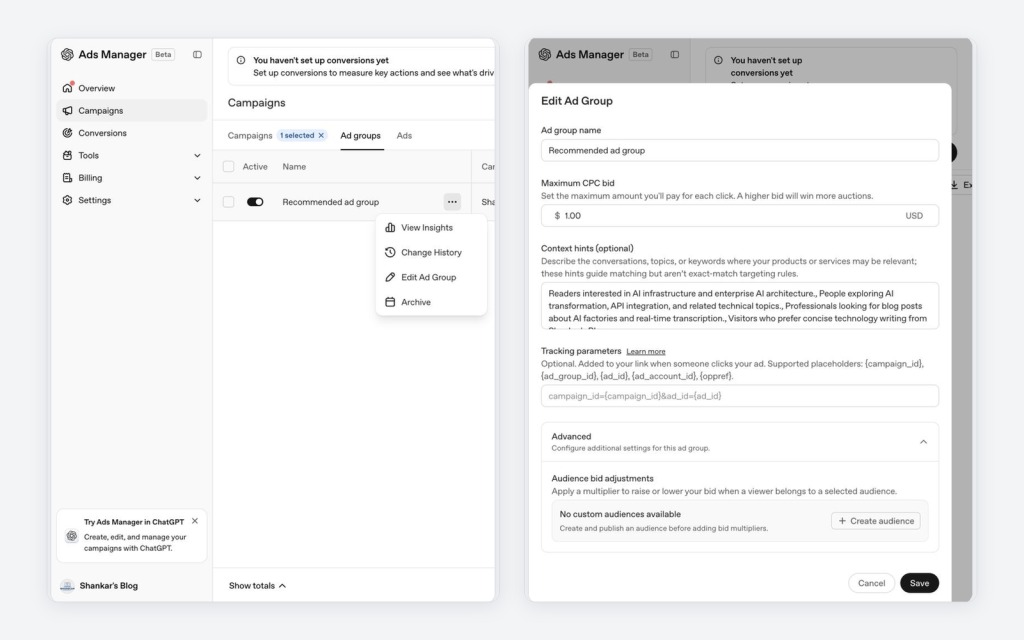
- View Insights – Opens the Metric Trends panel.
- Change History – Every change made to this ad group.
- Edit Ad Group – Change the ad group name, maximum CPC bid, context hints and tracking parameters.
- Archive – Remove the ad group from your active list when you no longer need it.
Editing an ad group
This is where the bid and the targeting hints live (the panel on the right in the image above).
- Maximum CPC bid – The maximum you pay for each click. In Ads Manager’s own words, ‘A higher bid will win more auctions’. Mine is $1.00.
- Context hints – Describe the conversations, topics or keywords where your product or service is relevant. These hints guide matching but aren’t exact-match targeting rules – this is very different from search keywords.
- Tracking parameters – The same placeholders as the campaign level.
- Advanced → Audience bid adjustments – Raise or lower your bid when the viewer belongs to a custom audience.
Metric Trends
Select a row and the toolbar changes to Edit, Active (pause/resume) and Export. The chart icon opens Metric Trends for the selected items.
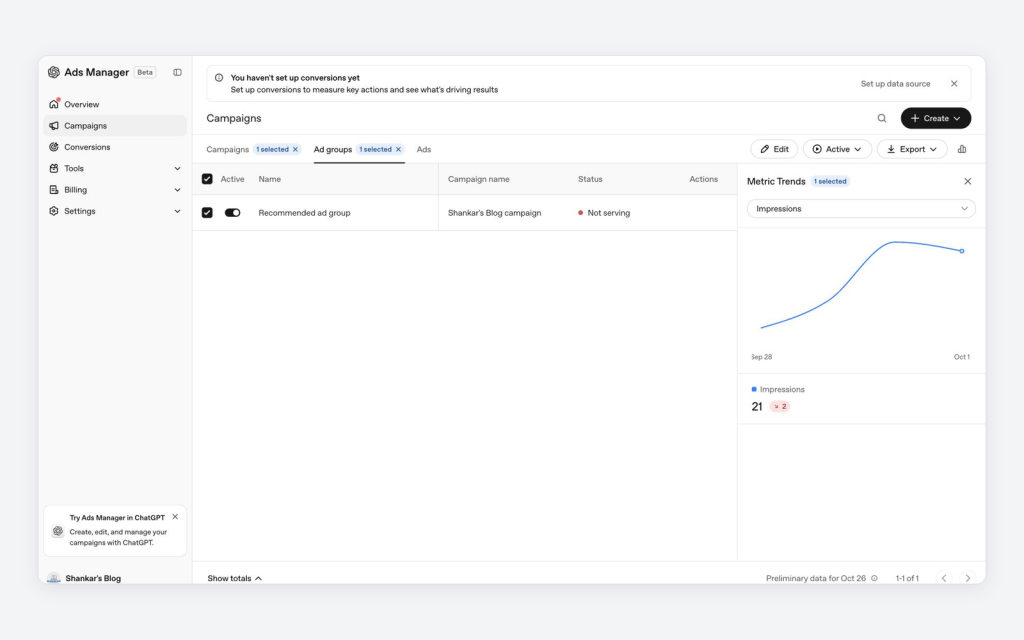
- Pick any metric from the dropdown. I used Impressions.
- The chart shows the trend for the selected date range, with the latest value and its change below it.
Ads
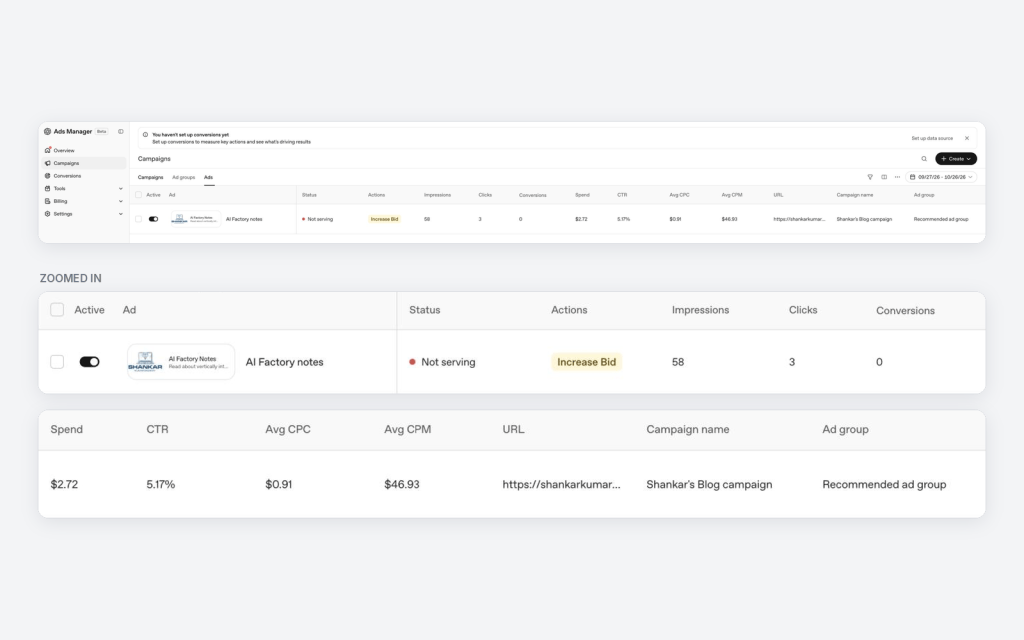
- Ad – A small preview of the ad (logo, ‘AI Factory Notes’ headline and description).
- Actions – Ads Manager flagged Increase Bid on my ad. This matches the ‘Low bid’ tag I saw when the campaign went live in Part 1.
- URL, Campaign name and Ad group – Where the ad sends people and where it belongs.
Conversions
Conversions is where you measure what happens after the click – a purchase, a sign-up or a lead form.
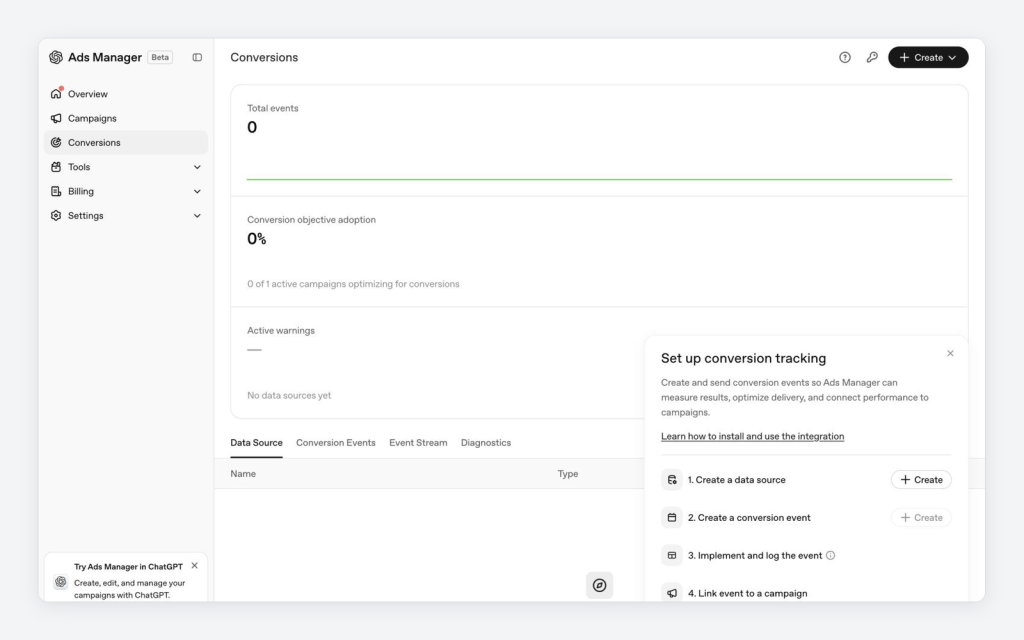
Setting it up is a four step process.
- Create a data source – The Pixel (JavaScript on your website) and/or the Conversions API (server-to-server).
- Create a conversion event – For example, a purchase or a sign-up.
- Implement and log the event on your website.
- Link the event to a campaign.
The page also shows Total events, Conversion objective adoption (how many active campaigns optimize for conversions) and tabs for Conversion Events, Event Stream and Diagnostics. I didn’t set this up because my goal for the blog was clicks, but you need it for the Conversions objective.
Tools
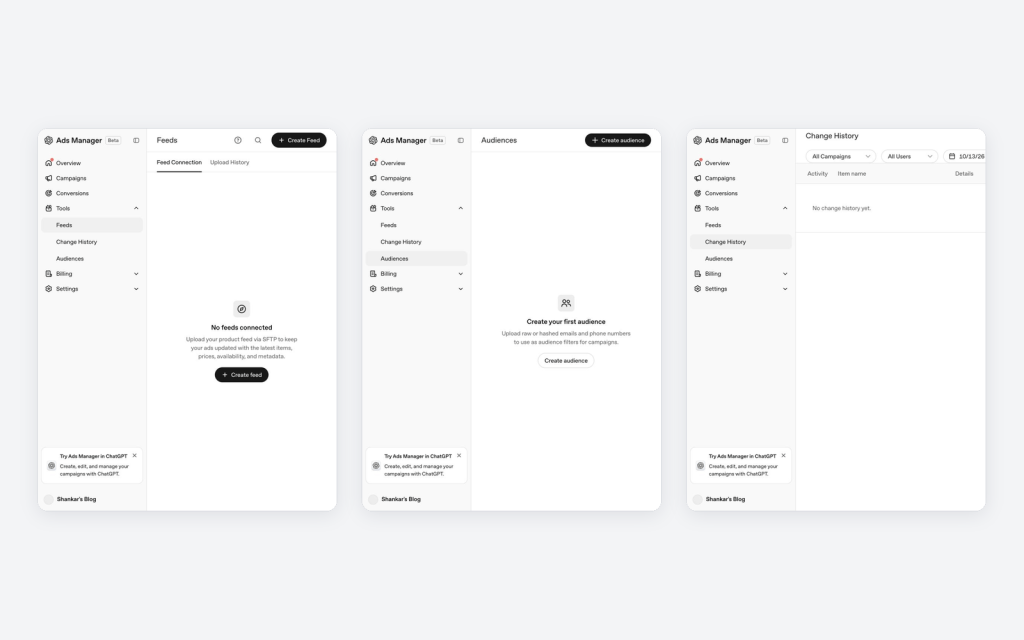
- Feeds – Upload a product feed via SFTP to keep your ads updated with the latest items, prices, availability and metadata. Useful for e-commerce.
- Audiences – Upload raw or hashed emails and phone numbers to use as audience filters for campaigns (include, exclude or adjust bids).
- Change History – A log of every change, filterable by campaign, user and date.
Billing
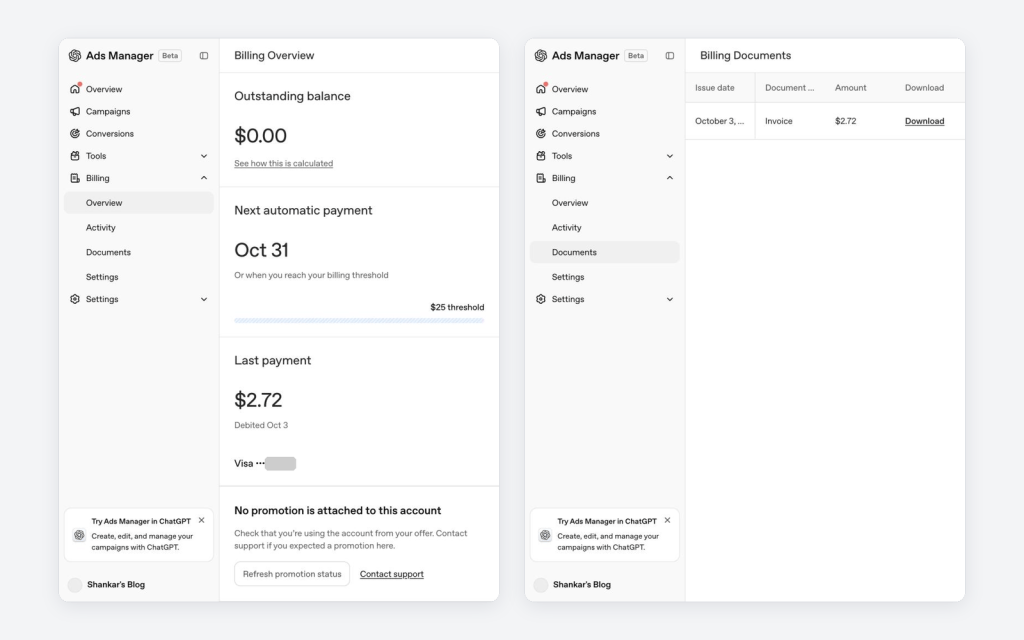
- Outstanding balance – What you owe right now.
- Next automatic payment – End of the month (October 31) or when you reach the $25 billing threshold, whichever comes first.
- Last payment – My card was debited $2.72 on October 3.
- Promotion status – Shows whether an offer (like the $500 ad credit) is attached to the account. Mine showed ‘No promotion is attached to this account’.
- Activity and Documents – Billing activity and downloadable invoices. My first invoice was for $2.72.
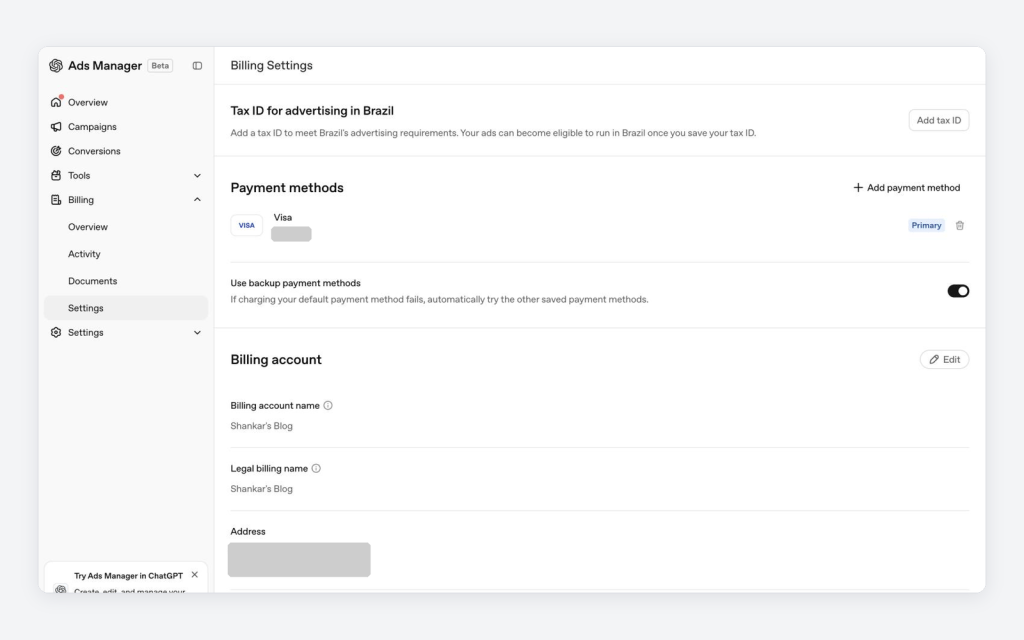
- Payment methods – Add cards and turn on backup payment methods in case the primary card fails.
- Billing account – Billing name, legal name, address and invoice email.
- Billing type – Postpaid autopay in USD.
- Tax ID for Brazil – Needed if you want your ads to run in Brazil.
Settings
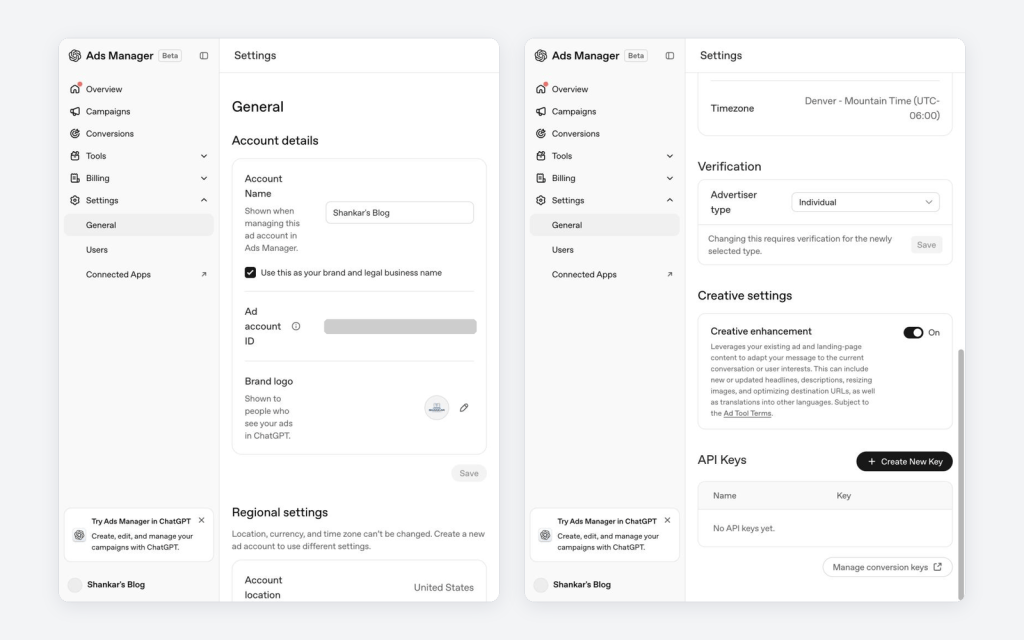
- Account details – Account name, ad account ID and the brand logo shown to people who see your ads in ChatGPT.
- Regional settings – Location, currency and time zone can’t be changed. You need a new ad account for different settings.
- Verification – Advertiser type (Individual for me). Changing it requires verification for the new type.
- Creative enhancement – An account-level switch, which was On for my account even though it was Off on my campaign. Worth checking both.
- API keys – Create keys for API access, with a link to manage conversion keys.
- Users – Invite teammates and assign roles.
- Connected Apps – Links to the apps connected to your ChatGPT account.
One more thing you will notice on every page – Try Ads Manager in ChatGPT. It lets you create, edit and ask about your campaigns right inside ChatGPT – for example, ‘How are my campaigns doing?’.
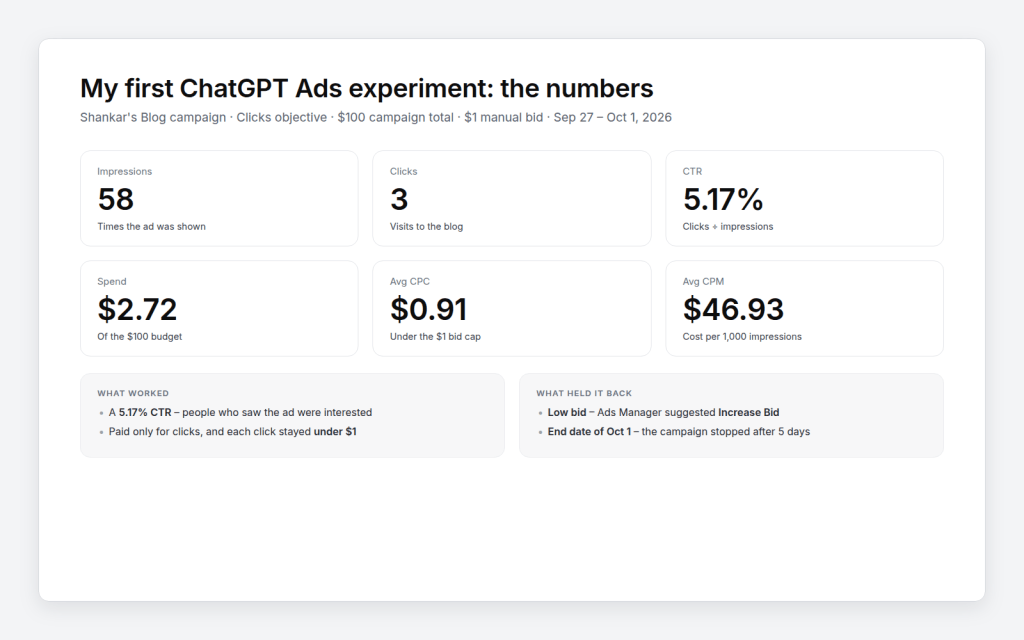
What my first campaign delivered?
What I learned?
- The people who saw the ad engaged with it. A 5.17% CTR is encouraging for a blog ad. Contextual matching on the conversation seems to work.
- The bid decides the reach. With a $1 manual bid, the ad won very few auctions – only 58 impressions. Ads Manager kept flagging Low bid and Increase Bid.
- Check the end date. My campaign stopped on October 1 with $97 of the budget unused.
- Follow the budget pacing. $100 over five days worked out to about $20/day, below the recommended $25/day.
- Context hints matter. They are not keywords – write them as the topics and conversations where your product is relevant.
- Add tracking parameters so you can see ChatGPT traffic in your own analytics.
- Review Creative enhancement at both the account and campaign level, so you know whether AI can rewrite your ad.
- Set up conversions if you sell something or collect leads. Clicks alone don’t tell you whether the traffic is valuable.
Across these two parts, I went from creating the account to reading the results of a live campaign. ChatGPT Ads manager is simple to start with. It builds the ad and campaign from your website, while still giving you the controls you expect – bids, context hints, audiences, conversions, feeds and detailed reporting. For a small advertiser, a $100 campaign total is an easy way to learn how your audience responds inside ChatGPT.
ChatGPT Ads open up a new way to reach people right when they are asking questions and making decisions. Ads manager gives you everything you need to run, measure and improve those campaigns.
Share your learning and experience with ChatGPT Ads.
Happy learning!

