
The digital identity used to securely access data or applications is constantly challenged by threat actors. They aim to steal information and cause harm to individuals’ lives and businesses. We see solutions getting improved to securely access applications. It is important to enhance the security and also simplify the user experience. FIDO was founded to gradually eliminate passwords. It also aims to introduce a more secure and easier way for users to access applications. The solutions bring in a new way for customers to sign up and sign in.
Passkey are the latest innovation from the FIDO Alliance and are built on the foundational WebAuthn and CTAP2 standards. They work together to create a secure, passwordless login experience.
1) WebAuthn is the API that enables communication between a website server and your web browser.
2) CTAP2 is the protocol that facilitates the interaction between your web browser and the authenticator (e.g., your phone, biometric sensor, or security key).
Which identity providers offer Passkeys out of the box?
To name a few, Microsoft Entra ID, Okta, Ping Identity, AWS Cognito are some of the popular identity providers that added support for the passkeys.
In this blog, let us see the implementation of Passkeys using AWS Cognito.
Prerequisite –
1) A valid AWS account.
2) Understanding the feature plans in Cognito and their pricing. We need Cognito Essentials or a Plus plan to implement passkeys.
a) Lite – The is the starting plan and does not support passkeys.
b) Essentials – This supports passkeys with biometrics and hardware keys. For the learning purpose, choosing Essentials plan is sufficient as it comes with 10,000 MAU free tier option.
c) Plus – It includes advanced security options. There is no free tier on the Plus plan and the very first MAU will be charged on this plan.
Step-by-step implementation of passkeys in AWS Cognito-
Step 1 – Create and name the user pool by choosing the configurations as needed by your application. If you already have the user pool, then this step is not needed.
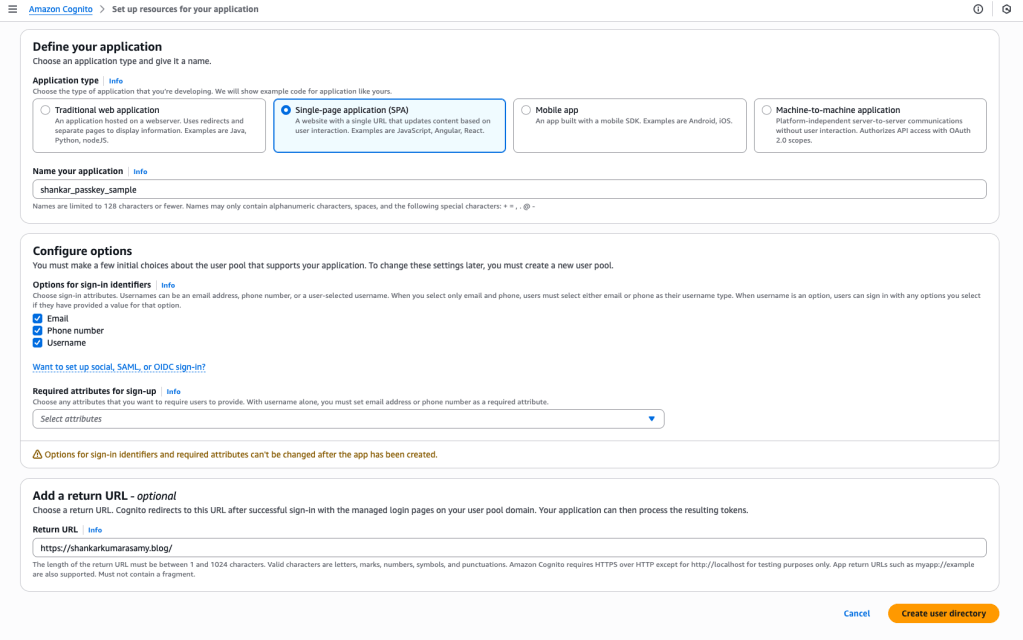
Step 2 (Optional) – Modify the login screen as needed using the branding editor. This is found under ‘Managed login’.

Step 3 – On the left navigation, choose ‘Authentication methods’. To change the passkey options click ‘Edit’ on the Passkey card.

Step 4 – Configure the Passkey options.
a) User verification – Preferred vs Required
1) Preferred : This means the users can set up authenticators that don’t have the user verification capability, and registration and authentication operations can succeed without user verification
2) Required : This is a stricter setting. It means the users can not set up authenticators that don’t have the user verification capability, and registration and authentication operations can not succeed without user verification. This option is used when security is the highest priority.
b) Domain for relying party ID – This associates the passkey with a domain.
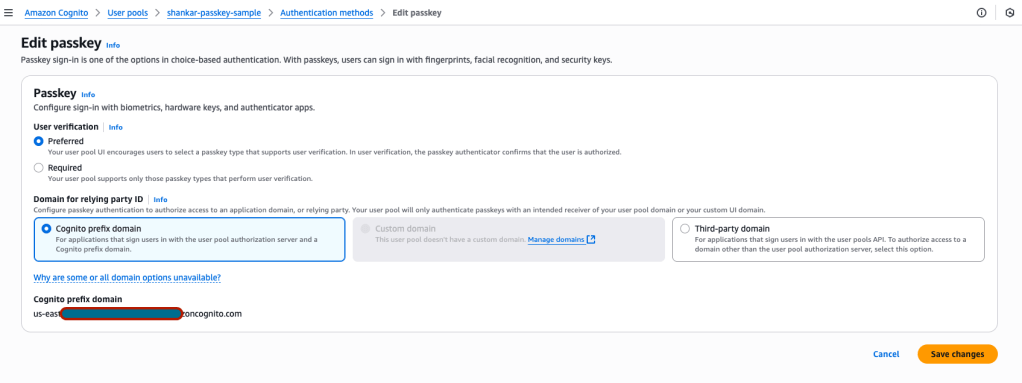
Step 5 – Select ‘Sign-in’ from the left navigation, and you will see ‘Options for choice-based sign-in’. Click on the ‘Edit’ button.
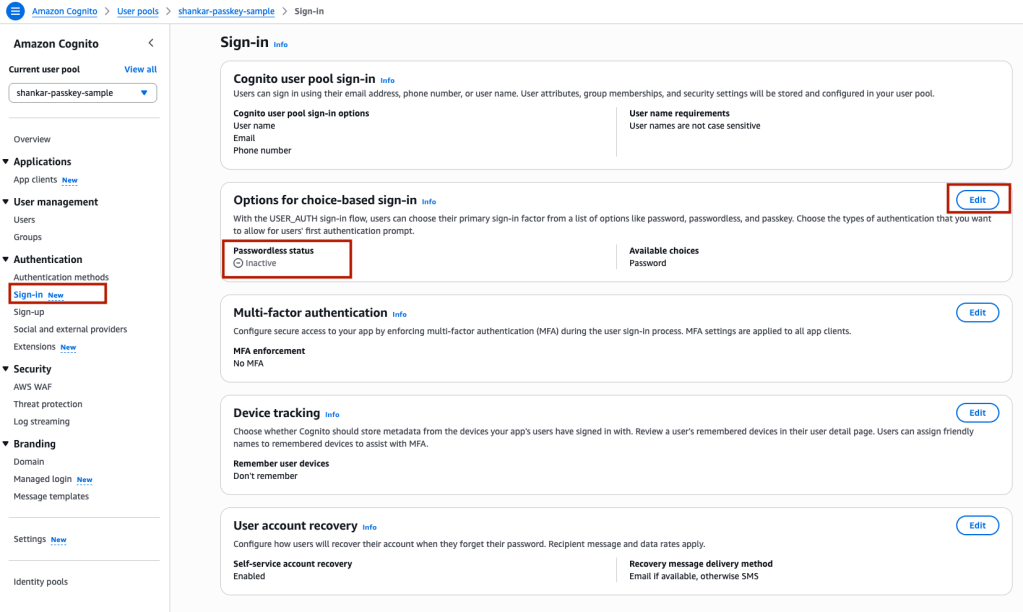
Step 6 – Add ‘Passkey’ from the ‘Additional choices’ checkbox.

All set for the passkeys now. It’s as simple as that.
Q&A that I explored during my setup :
Q1: Once I set the passkey in AWS Cognito, how do I enforce that only passkeys are used for future logins? I don’t want a password as an alternative option.
A: Cognito console by default does not give direct ways to disable the login with password option. However, we can use Pre-authentication trigger and lambda to check if the user is trying to authenticate with a password. If they are and a passkey exists, we can deny the request.
Q2: But while a new user is signing up, they might still be able to create a password. How do I prevent that?
A: We can not prevent this as well. By default, Cognito lets the user login with password as a backup option. Again, the Sign-up Lambda trigger type can be used to enforce the desired custom driven sign up flow.
Q3: While signing up, how can I ensure that the right user is signing up? For example, I have an account number and an email already registered in my system. The user should receive a passcode against the registered email to validate their identity before they can be added to the user pool.
A: Lambda trigger types is the way to check and enforce the auth flow.
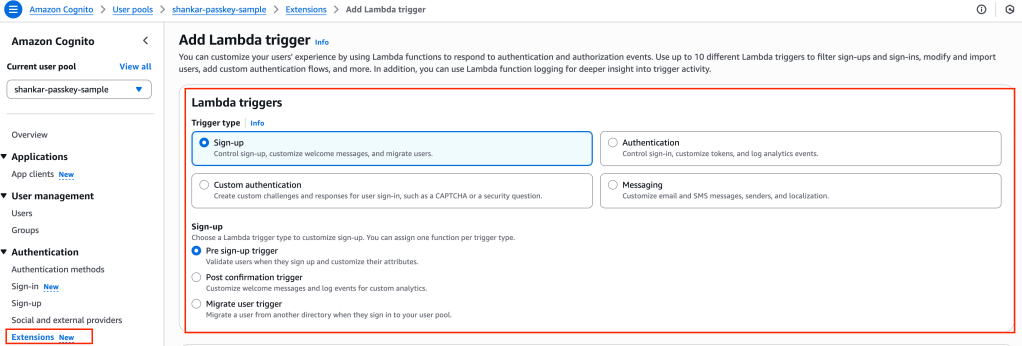
Q4: How do I set up that Lambda trigger?
A: The Lambda triggers are found on the ‘Extensions’ section on the left navigation.
Let’s test the auth flow –
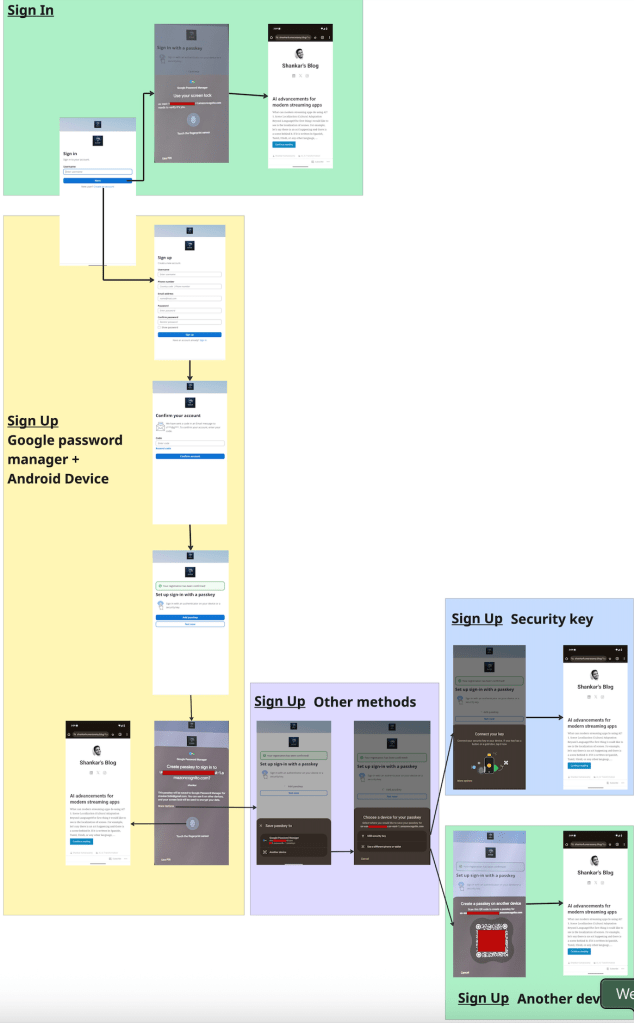
Other Q&A –
1) Confirmation of the user record is needed while signing up. I added user phone number and email as the ways to sign in. The sign up process is taking me to a screen to verify phone number using SMS OTP received. However, why am I not receiving the confirmation code via the SMS to verify the phone number?
Check if your account is on the SMS sandbox mode. You can submit the request with AWS support team and exit the SMS sandbox mode. Other way is by verifying the Sandbox destination phone numbers. Some times we need to work with AWS end user messaging as well. The easier option for Cognito learning is to enable verification over email. Do not use SMS for phone number verification.


2) Can I enforce passkeys for federated logins like sign up or sign in with ‘Amazon’, ‘Google’, ‘Facebook’, etc?
No, it is not possible. Passkeys are only for native Cognito users. In case of federated authentication, the login itself is handled by federeated identity providers. Cognito acts just as a broker. After successful authentication, federated identity service provides a token. Cognito uses this token to create or link the user’s profile in your user pool. Cognito is not involved in the actual sign-in step.
3) Can I enforce passkeys for critical transactions?
Step-up authentication is not directly supported out of the box by Cognito. Custom implementation can be made on the backend. The public key can be retrieved to perform the signature verification.
4) Can I remove the passkey in AWS Cognito?
Yes, you can delete a passkey in AWS Cognito. Cognito provides a specific API action for this purpose: DeleteWebAuthnCredential.
Share your use cases and implementation of passkeys in your application.
Happy learning!
 Shankar's Blog